
You have joined a use case and accepted the terms. Training a model is easy: you run a Jupyter notebook locally to connect and submit models to the workspace. For a smooth first run, let’s follow the step by step notebook in the public GitHub repository along with the documentation below. Alternatively, you may use the notebook hosted in Google Colab and jump directly to Step 1.Documentation Index
Fetch the complete documentation index at: https://tracebloc-docs-install-extras-for-0-6-33.mintlify.app/llms.txt
Use this file to discover all available pages before exploring further.
Pull Training Notebook and Model Repositories
On your machine, create a tracebloc folder and pull the Training GitHub repository and the Model Zoo GitHub repository. The notebook contains all commands to connect and start training, the model zoo contains a selection of compatible models ready for training. The easiest way to customize models is by starting from the model zoo. Open a terminal and run the following commands:Create a Virtual Environment
Create a new environment, name it for example “tracebloc”:Install and Launch Jupyter Notebook
Install Jupyter into your environments:1. Connect to the tracebloc workspace
Follow the instructions in the notebook to authenticate. Have your tracebloc user credentials ready: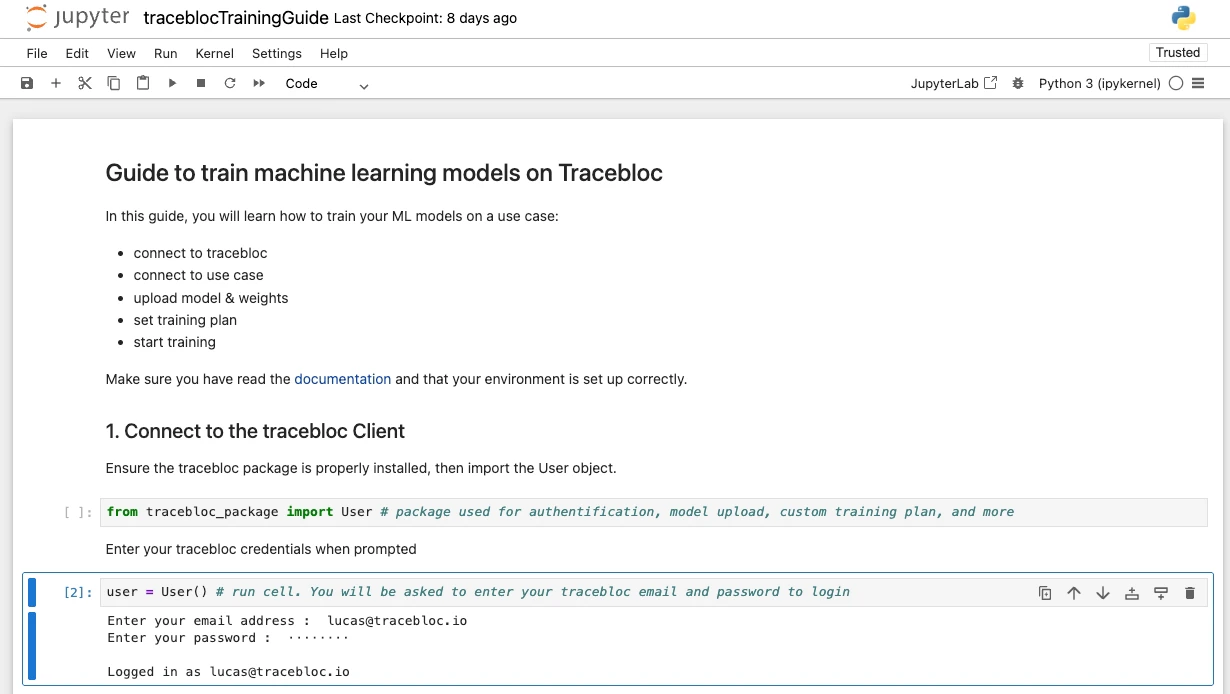
Getting Help
For more info about available functions and methods, call the help function:2. Upload Model & Customize
Choose a model from the tracebloc model zoo, it is the easiest way to get started. The model zoo provides starter templates you can modify freely. Make sure the mandatory variables in your model file match the use case parameters. You can find all the necessary info from the use case description and exploratory data analysis (EDA). Alternatively, you can define your own architecture from scratch.Model Parameters by Task
| Data Type | Task | Model Parameters |
|---|---|---|
| Image | Classification | image_size has to match image x/y-dimensions output_classes has to match # of image classes |
| Image | Object Detection | image_size has to match image x/y-dimensions output_classes has to match # of object types |
| Image | Semantic Segmentation | image_size has to match image x/y-dimensions output_classes has to match # of object classes |
| Image | Keypoint Detection | image_size has to match image x/y-dimensions output_classes has to match # of object classes num_feature_points has to match # of keypoints |
| Tabular | Tabular Classification | output_classes has to match # of classes num_feature_points has to match # of features |
| Text | Text Classification | input_shapesequence_length output_classes |
Example
A 3-way classification task on 224x224 images with LeNet would need the following lenet.py configuration:Upload
Upload the model to the use case workspace from your notebook:3. Link Model with Dataset
Navigate to the use case and copy the “Training Dataset ID” at the center of the use case pane and enter it to establish the link4. Set Training Plan
Set the experiment name and configure hyperparameters.5. Start Training
To send the model to the workspace infrastructure and start training on the training data, run:If you want to run a second experiment, overwrite parameters and re-start training with
trainingObject.start().Pause, Re-Start and Stop:
To pause, stop, or resume running experiments, click here:
Submit an Experiment to the Leaderboard
Once training is complete, submit your best model to the leaderboard for evaluation on the test dataset. For the full submission flow and leaderboard details, see the Evaluate Model guide.Inviting Others to Your Team
See the Join guide for instructions.Next Steps
- customize models: Follow model optimisation.
Need Help?
For more info about available functions and methods, call the help function in your notebook:- Email us at support@tracebloc.io